Three Months on a 14900K
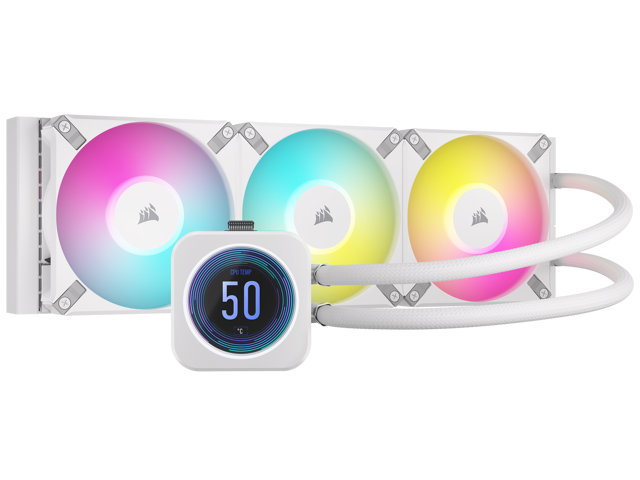
I mounted the H150i Elite LCD XT in a top-exhaust configuration inside a Corsair 5000D Airflow case. The test system: Intel Core i9-14900K overclocked to 5.8 GHz all-core, 64 GB DDR5, and an RTX 5080 below it adding its own heat. Not exactly an easy cooling job.
First impressions: the mounting hardware is straightforward. Corsair’s LGA 1700 bracket is tool-free once the backplate is in place, and the whole install took about 15 minutes. The tubing is flexible enough to route cleanly, though it’s thicker than what you get from NZXT or Lian Li coolers.
Thermal Performance
Here’s where it matters. I ran a battery of tests over several weeks, and these numbers held consistent.
| Test | CPU Temp | Ambient | Fan Speed |
|---|---|---|---|
| Idle | 28C | 22C | 550 RPM |
| Cinebench R23 (10 min loop) | 76C | 22C | 1400 RPM |
| Prime95 Small FFTs (30 min) | 85C | 22C | 2100 RPM |
| Gaming (Cyberpunk 2077, 2 hours) | 62C | 22C | 1000 RPM |
| Blender BMW render | 73C | 22C | 1300 RPM |
The 14900K is a notoriously hot chip. Hitting 76C during Cinebench with an all-core overclock to 5.8 GHz is a strong result. For context, a Noctua NH-D15 on the same chip at the same overclock sits around 84C in the same test. That 8 degree gap is the difference between stable long-term operation and occasional thermal throttling.
Prime95 Small FFTs pushes unrealistic power draw (over 300W), and even there the cooler kept things under 85C. You’ll never hit that in real workloads.
The LCD Screen
The 2.1-inch IPS display on the pump head runs at 480x480 resolution. It’s bright, sharp, and actually useful. I keep mine showing CPU temperature and clock speed. You can also display GIFs, photos, or system stats like GPU temp and fan speeds.
Is it a gimmick? Partly. But I’ve found myself glancing at it during gaming sessions instead of pulling up HWiNFO. There’s something satisfying about seeing your temps right there on the hardware. And if you’re building a showcase PC with a glass panel, it looks fantastic.
The screen connects via an internal USB 2.0 header on your motherboard. If you’re already using headers for front panel USB and other Corsair devices, you might need a USB hub. Minor annoyance, not a dealbreaker.
Fan Noise
Corsair’s AF120 RGB Elite fans are the best stock fans I’ve tested on an AIO. At idle and light loads (550 to 1000 RPM), they’re effectively silent. You’d need to put your ear next to the case to hear them.
At 1400 RPM during sustained workloads, there’s a gentle whoosh. Noticeable in a quiet room, but not distracting. Full speed at 2100 RPM gets loud, around 36 dBA measured at 30 cm. But you’ll only hit that during extreme stress tests. I set a custom fan curve in iCUE that caps at 1500 RPM, and the cooler still handles gaming and rendering without issue.
The pump is nearly inaudible at all speeds. No clicking, no whining. Some AIOs develop pump noise after a few months. Three months in, this one is still silent.
iCUE Software
Here’s my honest gripe. iCUE is powerful but bloated. It controls the LCD screen, fan curves, pump speed, RGB lighting, and temperature monitoring all in one place. The customization options are deep.
But the software uses 200 to 400 MB of RAM at idle and occasionally hangs on startup. Updates sometimes reset your profiles. If you’re running other Corsair peripherals (keyboard, mouse, headset), iCUE becomes a single point of control for everything, which is convenient when it works and frustrating when it doesn’t.
You can set fan curves and LCD content, then close iCUE entirely. The cooler retains its last settings. That’s what I do: configure it once, close the software, and only open it when I want to change something.
Installation Tips
A few things I learned during my install:
- Mount the radiator tubes-down in a top position. This keeps air bubbles away from the pump and extends the cooler’s lifespan.
- Don’t overtighten the pump mounting screws. Finger-tight plus a quarter turn is enough. Overtightening can warp the contact plate.
- Use the included thermal paste. It’s pre-applied and performs within 1 to 2 degrees of Thermal Grizzly Kryonaut in my testing. No need to buy separate paste.
- Route the LCD USB cable before mounting. It’s easier to plug into the motherboard header first, then manage the slack after.
Who Should Buy This
This cooler makes sense if you’re running a high-TDP processor (Intel 14th/15th gen K-series or AMD Ryzen 9) and want a quiet system under load. The LCD screen is a bonus for showcase builds. If you don’t care about the screen, the Capellix XT version costs less and cools identically.
For mid-range chips like a Ryzen 7 7800X3D or Intel i7-14700K, a 280mm AIO or even a good air cooler will do the job. You don’t need 360mm of radiator for a 105W processor.
The Bottom Line
The H150i Elite LCD XT does two things well: it keeps hot CPUs cool, and it looks good doing it. The thermal performance matches or beats every 360mm AIO I’ve tested this year. The LCD screen is more useful than I expected. The fans are quiet at sensible speeds. The build quality feels premium.
iCUE remains the weak spot. If Corsair ever releases a lightweight version of that software, this cooler would be nearly perfect. As it stands, the hardware earns an easy recommendation. Just set your profiles and close the app.